By Josh Peacock, Dennis Mortensen In Newsletter | September 2026
Automatic Screenshot Alterations: Remove, hide or blur elements across all your visuals
Newsletter 29
Our newsletter from September 22nd, 2026. Feel free to sign up to get this directly in your inbox
Screenshots, cleaned up automatically.
Your application is built for someone actively using it and needs to support your entire product experience. Your screenshots have a much narrower job: show your readers exactly what to click, where to look and what to expect next.
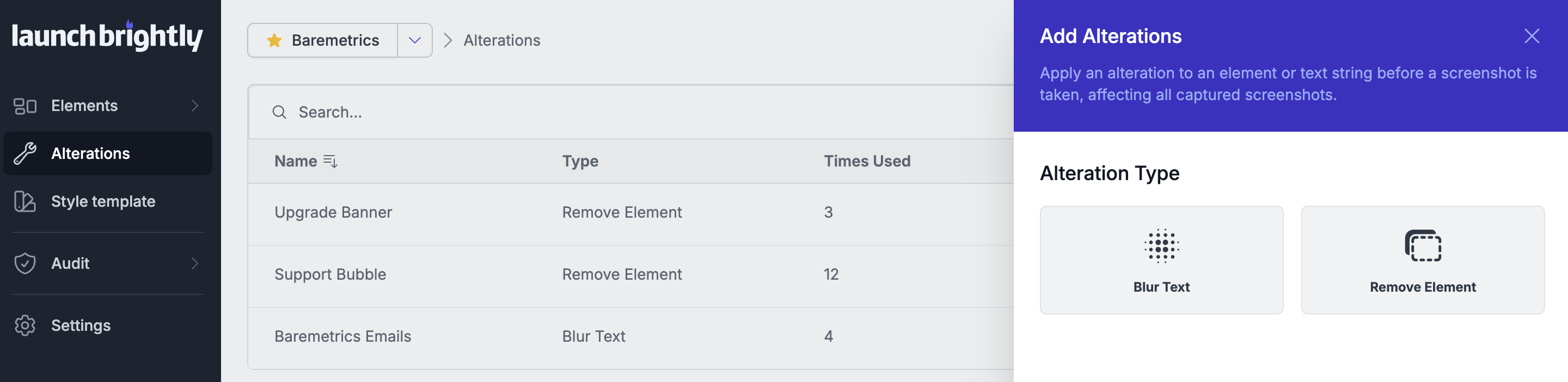
A chat bubble, notification badge, demo account email address or feedback widget might belong in your product. But in a help article, those same elements can become visual noise, pulling attention away from the workflow you’re trying to explain.
Configured once. Applied across every screenshot.
Instead of remembering to blur the same email address or hide the same notification badge across hundreds of individual screenshots, Global Alterations let you define those cleanup rules once and have them applied automatically every time you generate a fresh screenshot.
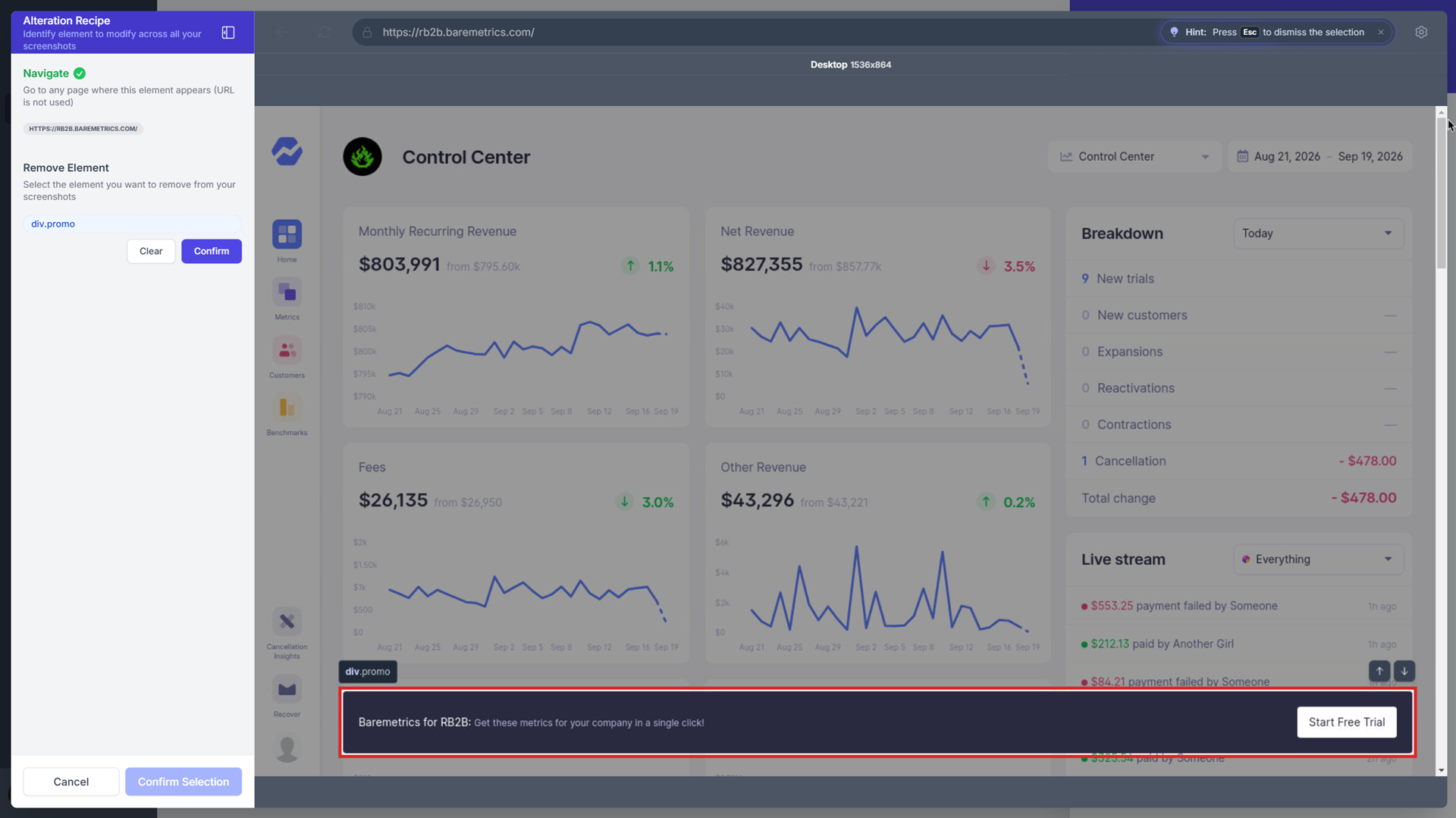
Those rules live at the account level rather than inside individual recipes. So the standard isn’t dependent on whoever happens to be creating or updating a recipe that day — it’s already there, ready to apply to the recipes you have today and the ones you create tomorrow.
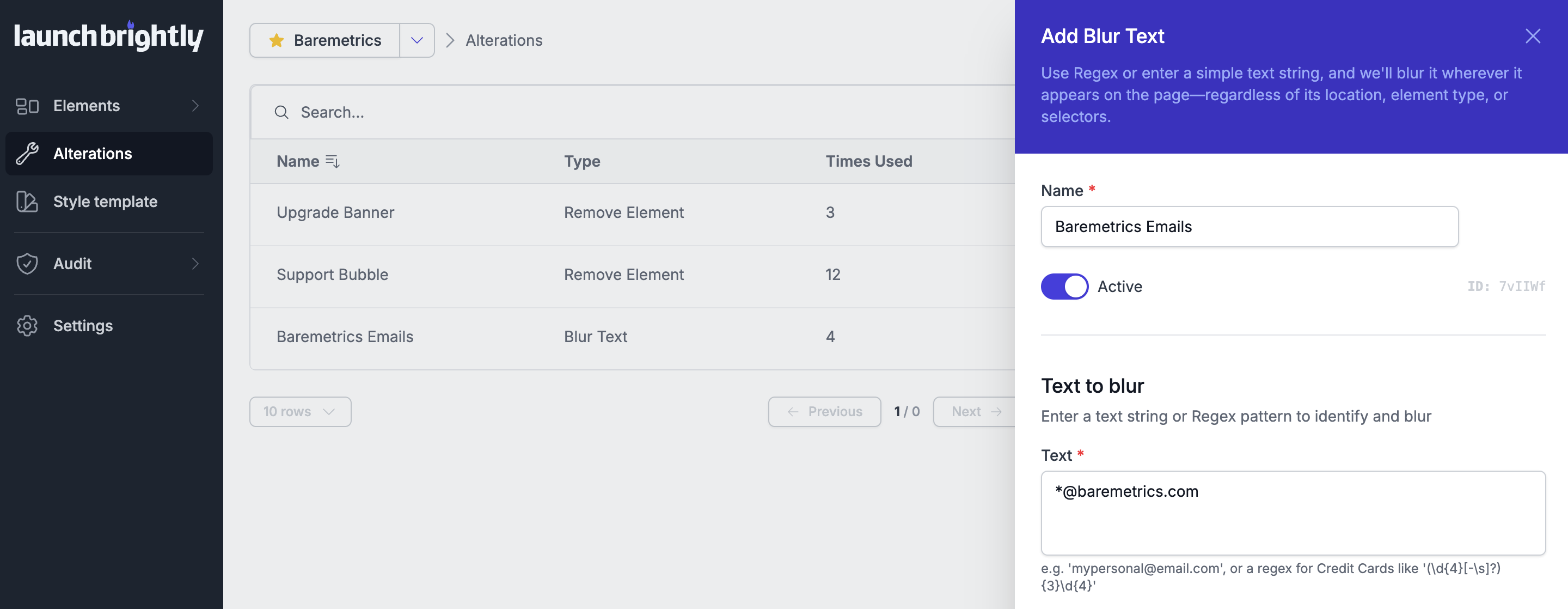
Reprocess an existing recipe after your product changes, or let a scheduled screenshot audit regenerate your screenshots. Either way, your account-level rules are applied automatically — no need to rebuild the same remove, hide or blur steps inside the recipe.
It moves screenshot cleanup from a manual chore repeated screenshot by screenshot into a reusable system that every recipe follows by default.
Global by default. Flexible when you need an exception.
A global rule is useful because it gives you consistency, but there will always be exceptions.
Maybe you normally hide your support chat bubble because it adds unnecessary noise — except in the article showing customers how to contact support, where that bubble is exactly what the reader needs to see.
You can now switch Global Alterations off for an individual automation recipe. The rules keep doing their job everywhere else, while the recipe that needs to break from the standard can do exactly that.
You keep the consistency of a global standard across your screenshot library, without forcing every screenshot into exactly the same treatment.
Want to see Global Alterations in action?
We’d love to do a no-cost POC where our Implementation Specialists configure your Global Alterations and create a dozen or so automation recipes for screenshots already in your help center 😇
Want a quick look first? Email us and we’ll send you a 3-minute walkthrough of Global Alterations in action.