By Josh Peacock In Best Practices, Screenshots, Automation | November 2026
How to find outdated screenshots in your help center (and keep them updated)
A practical guide to identifying outdated product screenshots, finding where they're used across your help center, and establishing a reliable process for keeping your documentation current.
Product changes don't announce themselves to your help center. A navigation menu gets redesigned, a settings page gains a new tab, or a button is renamed. The product moves on, but the screenshots in your help articles don't necessarily move with it.
That matters because product screenshots are often one of the first things customers look at when opening a help article. They help readers quickly recognize the part of the product they're working with and confirm they've found the right instructions. Even if a customer has found exactly the right article, screenshots that don't match their experience can undermine their confidence in the rest of the documentation and send them back searching — or straight to support.
But finding an outdated screenshot is only part of the challenge. That same image might appear in several different articles, while a change to something as common as your main navigation can leave screenshots outdated across completely unrelated workflows. Updating the screenshot you've spotted doesn't necessarily mean you've caught everywhere that needs attention.
Keeping your screenshots current means understanding where they're used, knowing how product changes affect them, and having a reliable way to manage updates. In this guide, we'll start with some simple checks you can do manually, then explore how to make screenshot maintenance easier and more consistent as your help center grows.
Start with your most-viewed help articles
One of the easiest ways to get a sense of how current your product screenshots are is to start with the help articles your customers visit most frequently. Most help center platforms provide analytics showing which articles receive the most traffic, so pull up your five or ten most-viewed articles and open them alongside the current version of your product.
Go through each article and compare the screenshots against what your customers would actually see. Look at navigation menus, buttons, settings, forms, and the overall appearance of the interface. Pay attention to any differences in layout, styling, or branding, as well as changes to the workflows themselves. And make sure you're comparing screenshots against the right customer experience. Different account permissions, subscription plans, or product configurations can affect what's visible on the screen.
While you're reviewing the screenshots, it's worth checking the written instructions too. If the interface has changed, the steps or annotations may also need updating. Keep a simple record of the discrepancies you find, which articles are affected, and what needs to be updated. A spreadsheet or a few tasks in your existing project management tool will do the job nicely.
Of course, your most-viewed articles are only a starting point. They give you a useful snapshot of your help center's health, but they won't tell you what's happening across your entire documentation library. Recent product releases, support ticket trends, and feedback from your support agents can also help identify areas worth reviewing
Look beyond the article where you found an outdated screenshot
Once you've identified an outdated screenshot, the obvious next step is to replace it. But before you move on, it's worth checking whether the same problem exists elsewhere in your help center.
There are two things to look out for: other screenshots affected by the same product change, and other articles using the exact screenshot you've discovered.
A product change can affect screenshots across unrelated articles
Imagine your team updates the main navigation in your application. Naturally, you'll review the articles explaining how to use that navigation and update any screenshots that no longer match the product.
But that same navigation might appear in screenshots throughout your help center, including articles about billing, reporting, integrations, and account settings. The workflows covered in those articles haven't necessarily changed, but their screenshots are now showing an older version of the interface.
That's why it's worth looking beyond the articles directly associated with a product release. Changes to shared UI elements, such as navigation menus, headers, account switchers, and settings panels, can affect screenshots across all sorts of unrelated workflows.
A practical way to catch these is to identify the shared interface elements that have changed and spot-check screenshots in different parts of your help center. Searching for an old feature name or navigation label can also help uncover affected articles, although it won't necessarily catch screenshots where that element appears without being mentioned in the text.
The same screenshot might appear in several articles
There's another common scenario worth checking. You find an outdated dashboard screenshot in one of your most-viewed articles, replace it with the latest version, and move on. But that same image might also appear in your onboarding documentation, a feature overview, and several troubleshooting articles. Updating the screenshot in one article doesn't necessarily update those other copies.
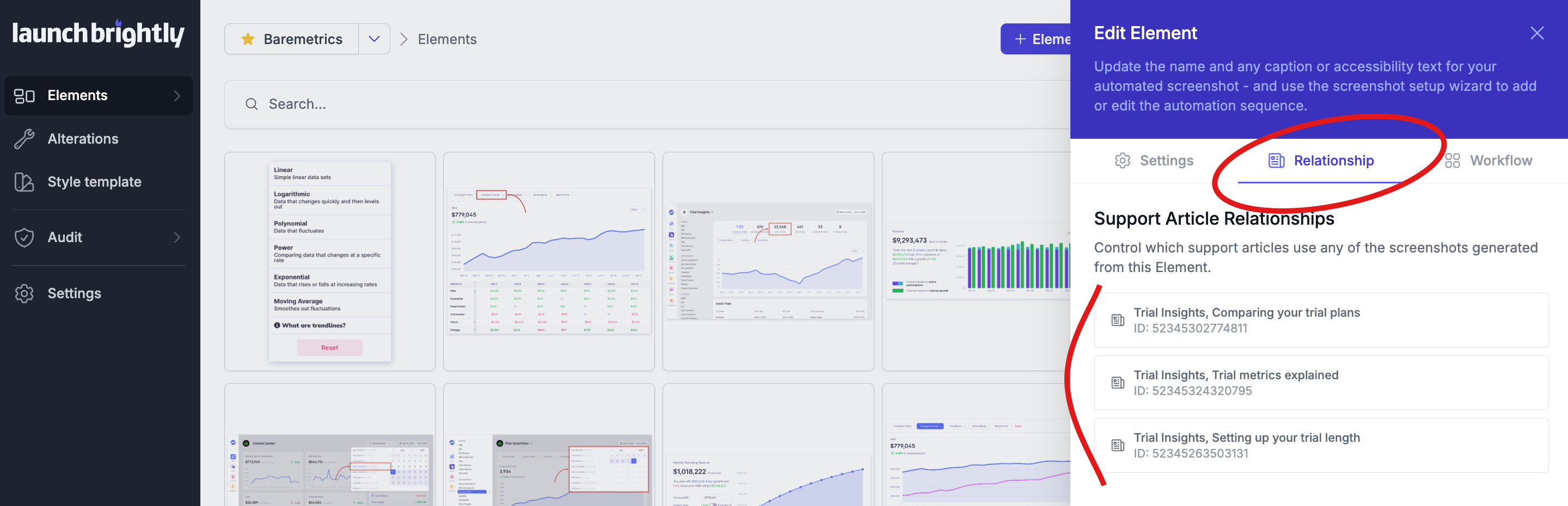
Start by checking whether your help center has a shared media library or allows you to search images by filename or URL. Some platforms can also show which articles reference a particular image, making it easier to find other instances.
If your platform doesn't offer those capabilities, search for articles covering the same screen or workflow and review the images they contain. You can also inspect image URLs or exported article content to identify where the same file is being used.
As you find other instances, it's worth building a simple inventory of your screenshots and the articles where they appear. Include the part of your product each screenshot shows, not just its filename or URL. That information becomes especially useful when a shared UI element changes, because you've already got a starting point for identifying which screenshots might be affected.
A basic inventory gives you a useful starting point, but keeping it accurate takes ongoing work as screenshots are added, updated, and reused. And once you're managing hundreds or thousands of images across your help center, maintaining those relationships manually becomes a substantial undertaking.
Maintain a single source of truth for your screenshots
If the same product screenshot appears in six different articles as six separate image uploads, you've effectively created six screenshots to maintain. Every time that part of your product changes, you'll need to find and replace each copy, with plenty of opportunity for an outdated version to be overlooked.
Where possible, it makes sense to maintain one canonical version of each screenshot that's shared across your help articles. The idea is simple. Rather than uploading separate copies of the same image into different articles, you maintain one authoritative version that all those articles reference. Update it once, and the change is reflected everywhere it's used.
Of course, this depends on how your help center platform manages images. Some support shared media assets or stable image URLs that multiple articles can reference, while others create independent copies whenever an image is uploaded. If your platform doesn't support shared images, maintaining one approved source screenshot and a record of where it's used can still make those updates easier to manage.
And of course, screenshots showing different user roles, product configurations, or workflows may need their own distinct versions. The goal isn't to use the same image everywhere, but to avoid unnecessarily maintaining multiple copies of the same screenshot.
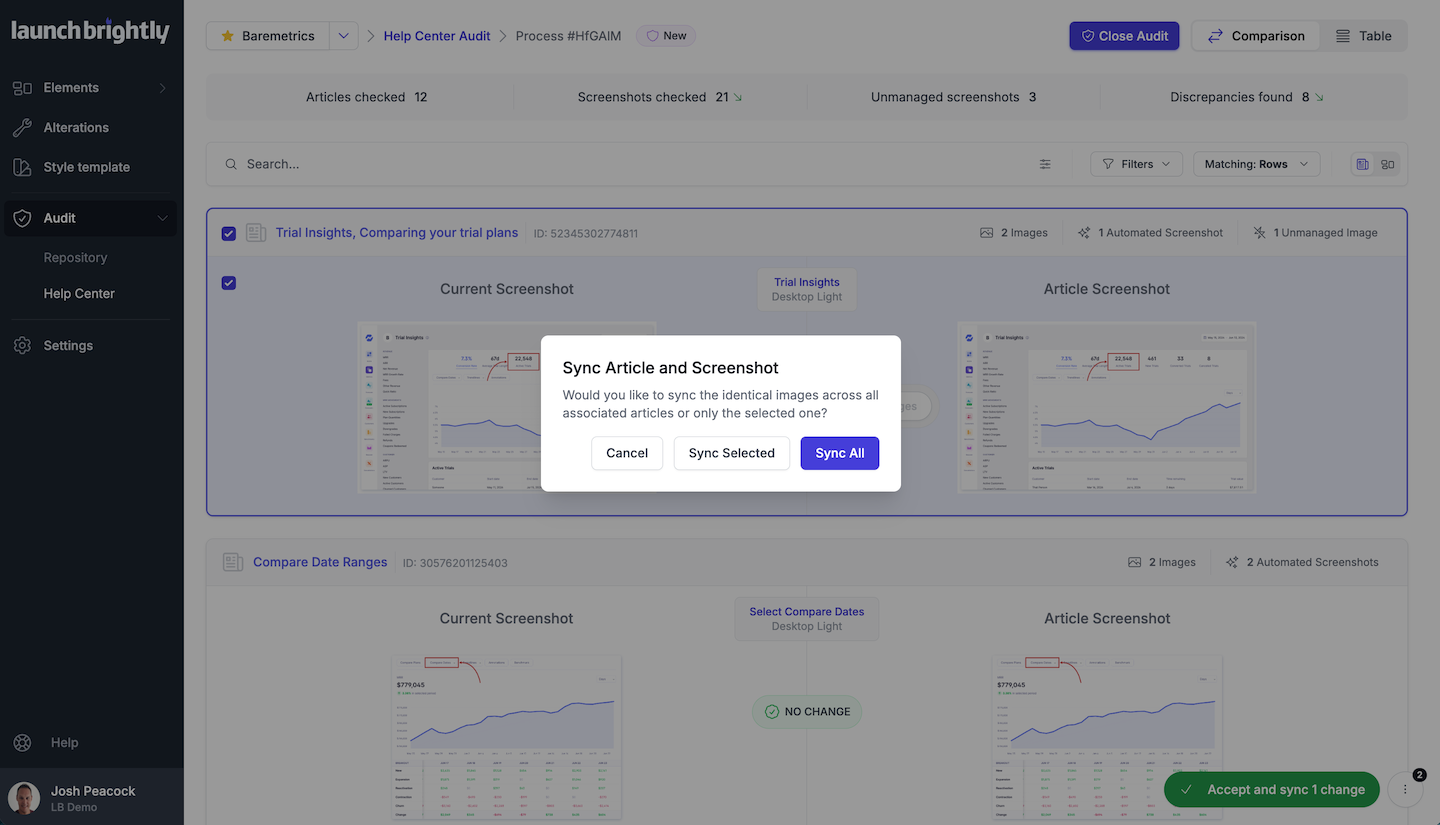
For larger help centers, keeping track of all those screenshots and where they're used can become a challenge in itself. This is another area where automation can help. LaunchBrightly tracks the relationships between managed screenshots and the articles where they appear, so when a screenshot is updated and approved, the new version can be synced across all the relevant articles.
Having one canonical version makes updates easier to manage and distribute. But you still need a reliable way to identify when the underlying screenshot needs updating, which is where your product release process can help.
Make screenshot maintenance part of your product release process
Periodic screenshot reviews are useful, but they shouldn't be the only way you find outdated images. It's worth building screenshot maintenance into your product release process so you can identify affected articles and prepare updates as changes are being made.
A good starting point is to include a simple documentation check in your existing release tickets or launch checklist. When a feature is being updated, identify whether the change affects anything shown in your help center screenshots, including shared UI elements that might appear across unrelated articles.
A shared release calendar or access to a staging environment can give you an early look at what's changing and time to prepare updated screenshots. And if you're maintaining a screenshot inventory, you can use it to quickly identify which articles might be affected.
It's also worth reviewing the written instructions alongside the screenshots. Changes to the interface can affect button labels, annotations, or the steps customers need to follow, so replacing the image alone might not be enough.
The aim is to make screenshot maintenance a regular part of your documentation workflow, rather than waiting for someone to discover an outdated image after the fact.
Use automation to make ongoing screenshot maintenance manageable at scale
All of the practices we've covered are worth putting in place, but they don't eliminate the manual work involved in keeping your screenshots current. Every product update still means identifying what's changed, finding the affected screenshots, capturing replacements, and updating every article where those images appear. Multiply that across hundreds or thousands of screenshots and a steady stream of product releases, and maintaining accurate visual documentation becomes an enormous, ongoing undertaking.
Even with a well-established release process and a screenshot inventory, you're still relying on someone knowing what's changed, identifying every affected image, and making sure the updates reach all the right places. At scale, keeping every screenshot accurate through manual processes is incredibly difficult, regardless of how organized your team is.
This is where screenshot automation fundamentally changes the process. Rather than relying on periodic manual reviews to discover outdated images, automation allows you to continually check your screenshots against the current product, automatically identify changes that need attention, and keep your visual documentation in sync as your application evolves.
That's exactly what we've built with LaunchBrightly. Recurring screenshot audits automatically generate fresh screenshots of your product and compare them with what's published in your help center, surfacing any changes for review. LaunchBrightly also brings your product screenshots into one centralized library, with a live map of every help article where each image appears. Those relationships are maintained automatically as screenshots are added, updated, or reused. So when you approve an updated screenshot, it's automatically synced everywhere that image is used.
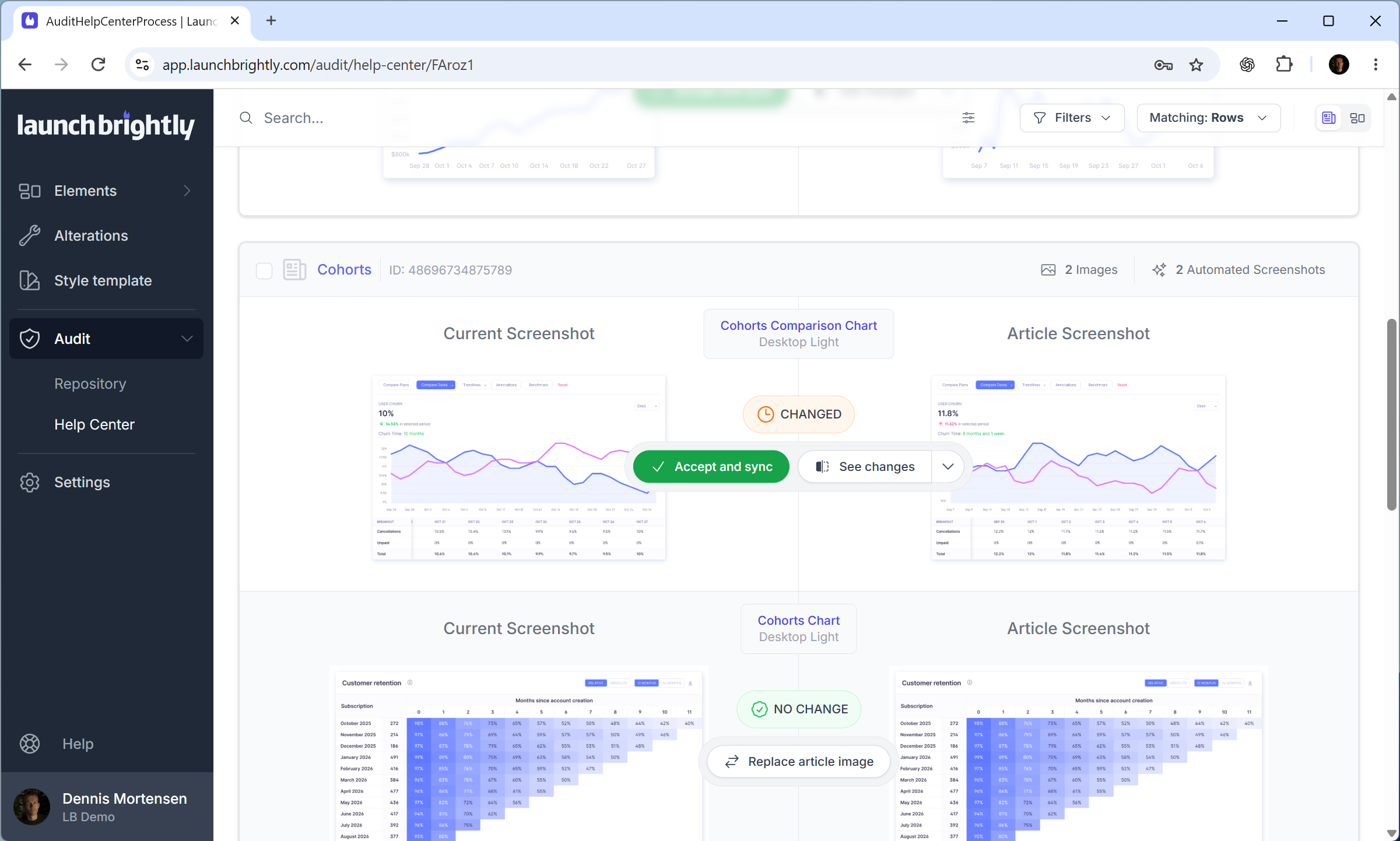
The result is a continuous, automated screenshot maintenance process that keeps pace with your product. Instead of an ever-growing backlog of outdated screenshots and manual updates, your documentation team has ongoing visibility into what's changed and a reliable way to keep screenshots accurate across your entire help center.
Keep your screenshots current as your product changes
Finding an outdated screenshot in one of your help articles is often just the beginning. The bigger challenge is understanding how far the problem extends, which other screenshots have been affected by product changes, and making sure those updates are reflected consistently across your documentation.
Starting with a few practical checks, maintaining centrally managed screenshots, and incorporating documentation reviews into your product release process can make a real difference. But as your help center grows, keeping on top of all those changes manually becomes increasingly difficult. That's where automation provides a much more sustainable way to maintain accurate screenshots as your product evolves.
Ultimately, it comes back to the experience you're providing your customers. When someone opens a help article, they should be able to trust that the screenshots reflect the product they're actually using. Keeping those visuals accurate and consistent isn't just good documentation practice; it's an important part of helping customers find the answers they need and confidently resolve their issues.
Curious what automated screenshot maintenance could look like in your own help center?
We'd love to show you! Our no-cost Proof of Concept uses your existing screenshots and real product workflows, so you can see the automation working in practice.