By Josh Peacock In Best Practices, Screenshots, Automation | October 2026
How to manage product screenshots at scale in your help center
A practical guide to reducing duplicate screenshots, organizing reusable images and keeping your help center up to date as your product evolves.
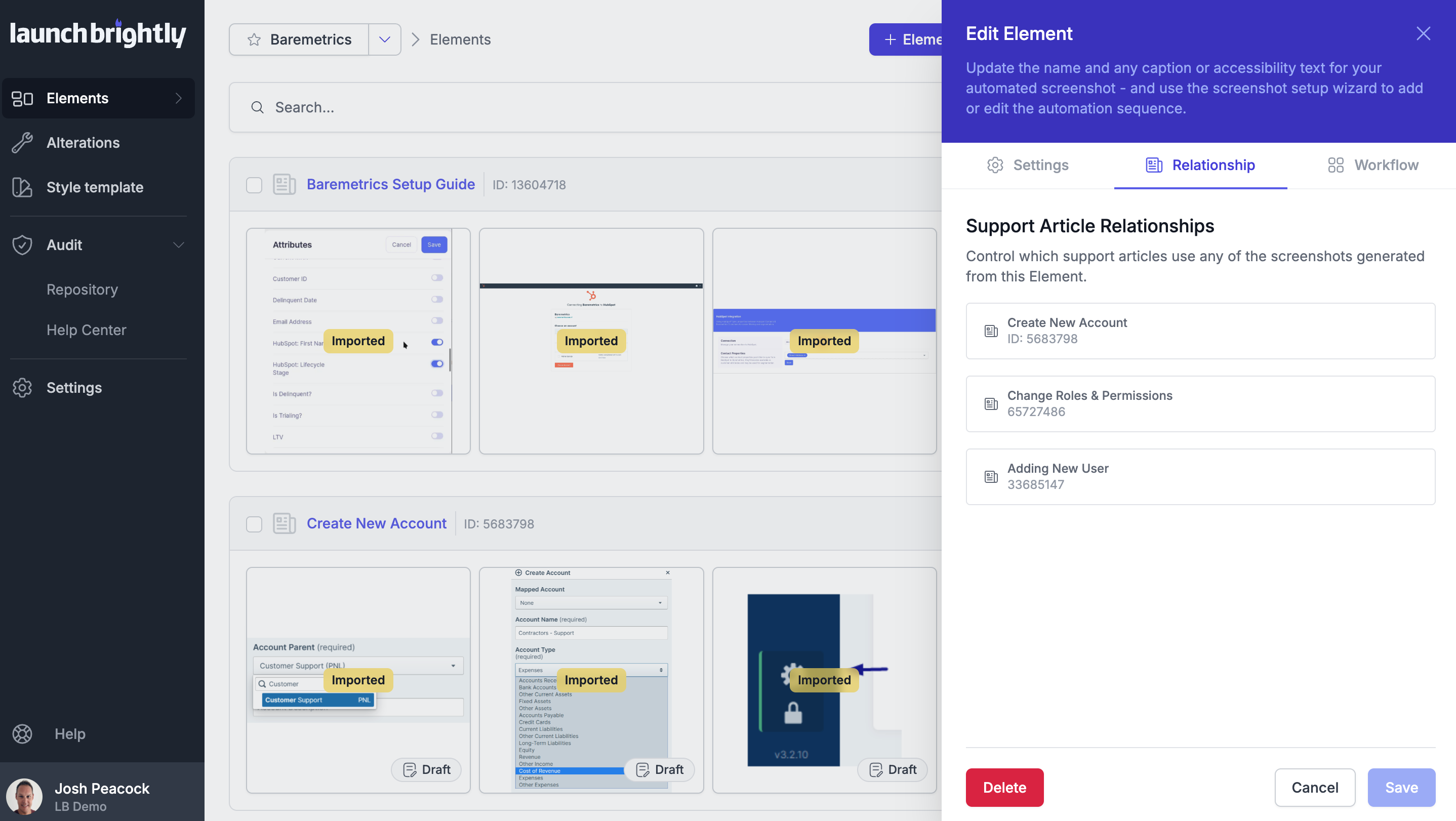
Managing product screenshots is one of those challenges that can sneak up on you. When your help center is relatively small, taking a screenshot and uploading it directly into an article is perfectly manageable. As new articles are created, it's often easier to capture a fresh screenshot of a familiar UI element than to spend time tracking down an existing version buried somewhere in your documentation.
The problem is that those small decisions start to add up. As your help center grows to hundreds of articles, the same navigation menus, settings pages, core modals and other product features can end up as separate image uploads scattered across dozens of articles. Each screenshot might have a slightly different filename, crop or annotation, and before long you have multiple versions of the same product UI spread throughout your documentation — with little visibility into exactly how many copies exist or where they're being used.
Then your product changes.
Suddenly, a seemingly small update to your main navigation can require changes to screenshots across your onboarding guides, feature walkthroughs and troubleshooting articles. Finding every affected image becomes a challenge in itself, never mind recreating each screenshot and ensuring the updated versions make their way into the correct articles. And without a clear picture of where those images are used, it's difficult to be confident you've caught every instance.
We've seen this challenge firsthand working with customer support and knowledge management teams responsible for maintaining large help centers. Fortunately, there are several practical ways to get your existing screenshots under control, reduce unnecessary duplication and establish a more manageable process for keeping your product visuals accurate over time.
Start by taking stock of your existing screenshots
Before introducing a new naming convention, reorganizing your image library or implementing new processes, start by getting a clear picture of what you already have.
Ideally, you want to understand how many images exist across your help center, how many are unique, which images are duplicated and, importantly, where each screenshot appears in your documentation.
Of course, this is considerably easier said than done. For a help center containing hundreds of articles and thousands of images, manually identifying duplicate screenshots and recording where each one appears can be a substantial undertaking. If you have access to tooling that can scan your help center and create a centralized inventory, it can save considerable work. Otherwise, a more targeted review of your most important articles and commonly documented product areas is a sensible place to begin.
Pay particular attention to frequently used product features. Your main navigation, account settings, common modals and other UI elements referenced throughout your documentation are good places to start. These are often the screenshots that have been independently captured the most, and where consolidating duplicates can deliver the biggest improvement to your ongoing maintenance.
Keep in mind that identifying duplicates isn't always as straightforward as matching filenames or comparing image files. Two screenshots might show exactly the same product feature but have different crops, annotations or minor visual differences. Pixel-by-pixel comparisons can help identify exact duplicates, but screenshots depicting the same underlying product UI aren't necessarily identical images. Uncovering these variations can be particularly challenging when working across hundreds of help articles, often requiring a closer visual review.
The aim is to identify where unnecessary duplication exists and begin working toward a more organized screenshot library. Even if you can't account for every image immediately, you'll have a much better understanding of where to focus your efforts.
Establish a consistent screenshot naming convention
One of the simplest ways to make your screenshot library more manageable is to introduce a predictable naming convention that makes your images easier to find, identify and reuse.
Without one, the same screenshot might be uploaded as billing-settings.png, account-payment-options.png and Screenshot-2026-10-27.png, making it difficult to identify existing assets or confidently search for duplicates.
We generally recommend choosing a simple naming structure that reflects the product feature being captured and, where relevant, the state or environment displayed. For example, [product-area]-[feature]-[state].png could produce filenames like dashboard-alerts-listview.png, settings-billing-upgrade-modal.png or users-permissions-edit-role.png.
For products supporting multiple screenshot modes, such as desktop and mobile views or light and dark mode, including those details can help distinguish between different versions. At LaunchBrightly, we use a similar naming pattern incorporating the product, screenshot mode and feature name.
The important part is consistency. Even the best naming convention becomes ineffective when different team members apply it differently or repeatedly upload existing screenshots under new names.
Make the convention easy to find, document a few examples and establish an expectation that your team searches the existing image library before capturing a new screenshot. This small addition to the workflow can go a long way toward preventing new duplicates from accumulating.
Treat screenshots as reusable assets, not individual article uploads
One of the most effective ways to reduce duplication is to treat your screenshots as reusable assets rather than images that belong exclusively to individual help articles.
The aim is to maintain one canonical version of a screenshot that can be referenced wherever it's needed. When that image changes, you update it at the source rather than manually replacing multiple independent copies scattered throughout your documentation.
Getting to one canonical version of your commonly used screenshots, if you can pull it off, gives you a solid foundation for managing your images at scale. But just as importantly, you need to know exactly where those screenshots are being used across your help center.
Consider a screenshot of your application's account settings that appears in twelve different help articles. Having one canonical version means you can update the image once, while knowing which twelve articles depend on it gives you the visibility to manage that change with confidence. Ideally, your screenshot library should maintain these relationships automatically, including as new articles are published and existing screenshots are reused.
There are several approaches to managing reusable screenshots, depending on your documentation platform and the tools available to your team.
Use your help center's media library. Some help center platforms provide centralized image management capabilities that allow existing media to be reused across multiple articles. Zendesk's Media Library, for example, supports sharing images across articles, viewing where an image is used and replacing an existing image everywhere that particular asset appears. HubSpot's Files tool also provides centralized file management, including the ability to replace existing files and view where they're used across HubSpot content.
These are meaningful improvements over managing independent image uploads, although capabilities vary considerably between platforms. Even where centralized libraries are available, reuse generally depends on your team deliberately selecting an existing asset rather than uploading another copy. If the same screenshot is uploaded twice, you still end up with two independently managed images, and updating one won't necessarily update the other.
Host screenshots externally. Another approach is to maintain your screenshots outside your help center using services such as Amazon S3 or Cloudflare, and reference those images through a stable, canonical URL. When the underlying image is replaced, every article referencing that URL can display the updated version without requiring individual replacements.
This can be effective for managing shared screenshots, although it requires additional infrastructure and technical setup. Help center platforms are generally designed around their own media upload workflows, which can make external image management less straightforward. You'll also need to consider image caching, URL stability and control over when updates become visible in published articles.
Organize images in a shared workspace. A structured Google Drive or Microsoft OneDrive folder can provide a practical central location for storing and organizing screenshots. Figma can also be useful for preparing screenshots, applying visual enhancements or organizing images by product feature and workflow.
These tools can make existing assets easier to find, but updating a screenshot in Google Drive, OneDrive or Figma doesn't automatically update copies already published in your help center. That synchronization generally remains a separate, manual process.
Whichever approach you choose, the underlying principles remain the same: establish canonical versions of commonly used screenshots, make reuse easy and maintain visibility into where those images appear across your documentation.
For smaller teams, tracking those relationships in a spreadsheet may be manageable. But as the number of screenshots and articles grows, look for tools that maintain these relationships automatically rather than relying on your team to keep another inventory up to date.
Put simple processes in place to prevent duplication
Organizing your screenshots is an important first step, but keeping them organized requires some ongoing discipline. Even a well-structured image library can quickly return to its previous state if different authors continue capturing and uploading images independently.
A few practical processes can help maintain consistency:
- Search before uploading. Make checking the existing image library a regular part of creating or updating help articles.
- Reuse existing screenshots wherever practical. Reference canonical assets rather than creating independent copies of the same image.
- Assign ownership of product areas. Having someone responsible for screenshots associated with particular features or documentation sections helps establish accountability for maintenance.
- Schedule periodic screenshot reviews. Review heavily used screenshots and product areas to identify outdated images, unnecessary duplication and opportunities for consolidation.
- Maintain image history and timestamps. Created and last-updated dates, along with version history where available, provide useful context when reviewing older screenshots.
It's also worth considering how screenshot updates fit into your existing product release and documentation workflows. If you're preparing help articles ahead of a major UI release, for example, you'll want to make sure updated screenshots aren't published before the corresponding changes are live.
This is particularly relevant when using shared images or externally hosted assets, where replacing one image can immediately affect multiple published articles.
These processes don't need to be complicated. The objective is to make screenshot reuse and maintenance a predictable part of your documentation workflow, rather than something your team only addresses when outdated images are discovered.
Take the manual work out of screenshot maintenance
All of these best practices can make a meaningful difference to how efficiently your team manages product screenshots. But even with a well-organized library, canonical assets and clear article relationships, keeping those images up to date still requires someone to identify product changes, recreate affected screenshots and ensure the updated versions reach every article where they're used. For teams managing hundreds or thousands of screenshots, that's a substantial amount of manual work to repeat every time the product evolves.
This is where screenshot automation can take things a step further, allowing you to automate much of that ongoing maintenance rather than simply finding better ways to organize it.
At LaunchBrightly, we approach screenshots as something you should be able to generate automatically and repeatedly. Instead of capturing a screenshot once and saving it as a static image, you record the steps required to produce it — navigating your product just like a regular user would, preparing the exact UI state you want to capture, and applying any styling or annotations. Those steps become reusable automation that can be reprocessed whenever needed to generate fresh, up-to-date screenshots as your product evolves.
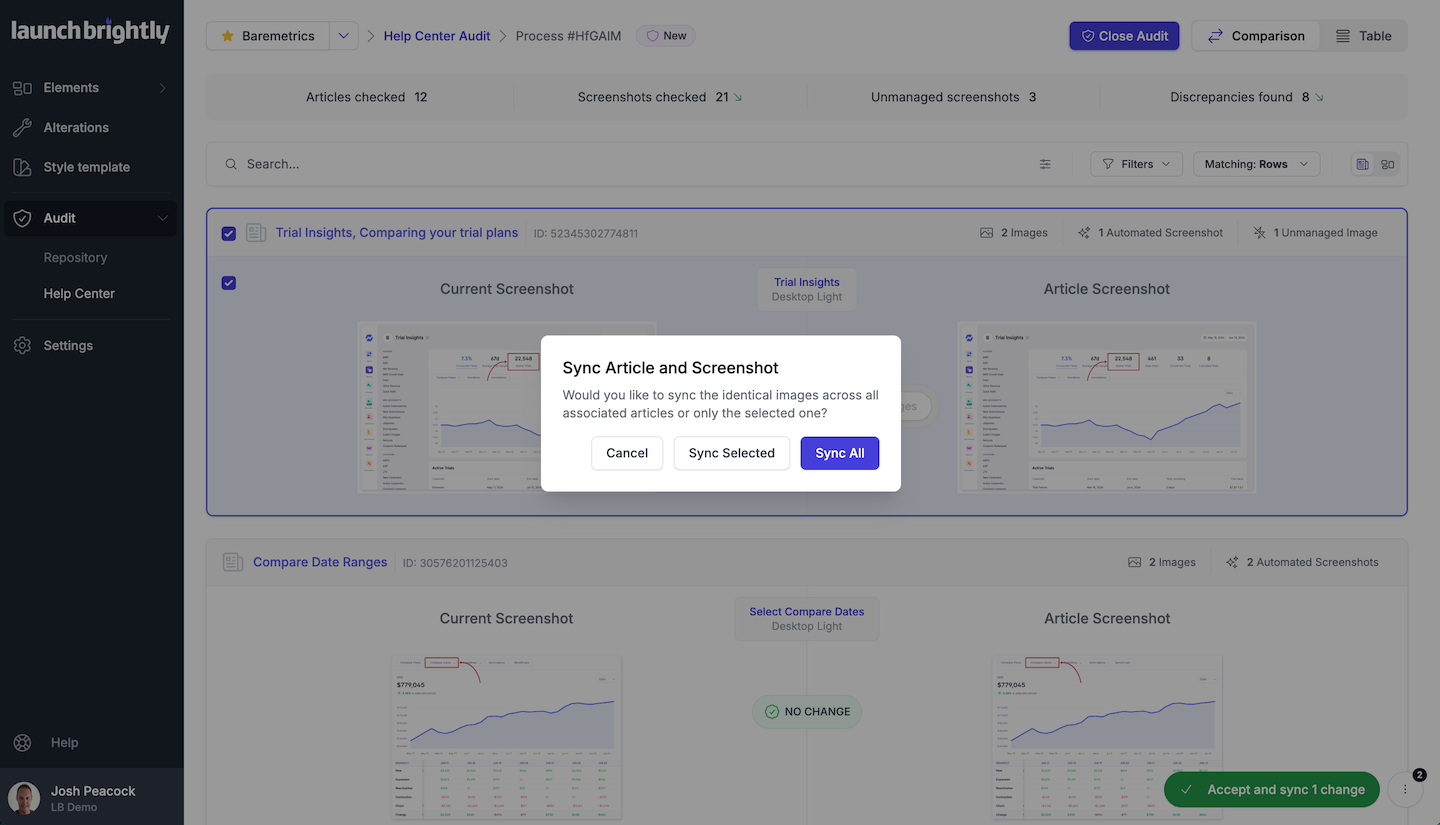
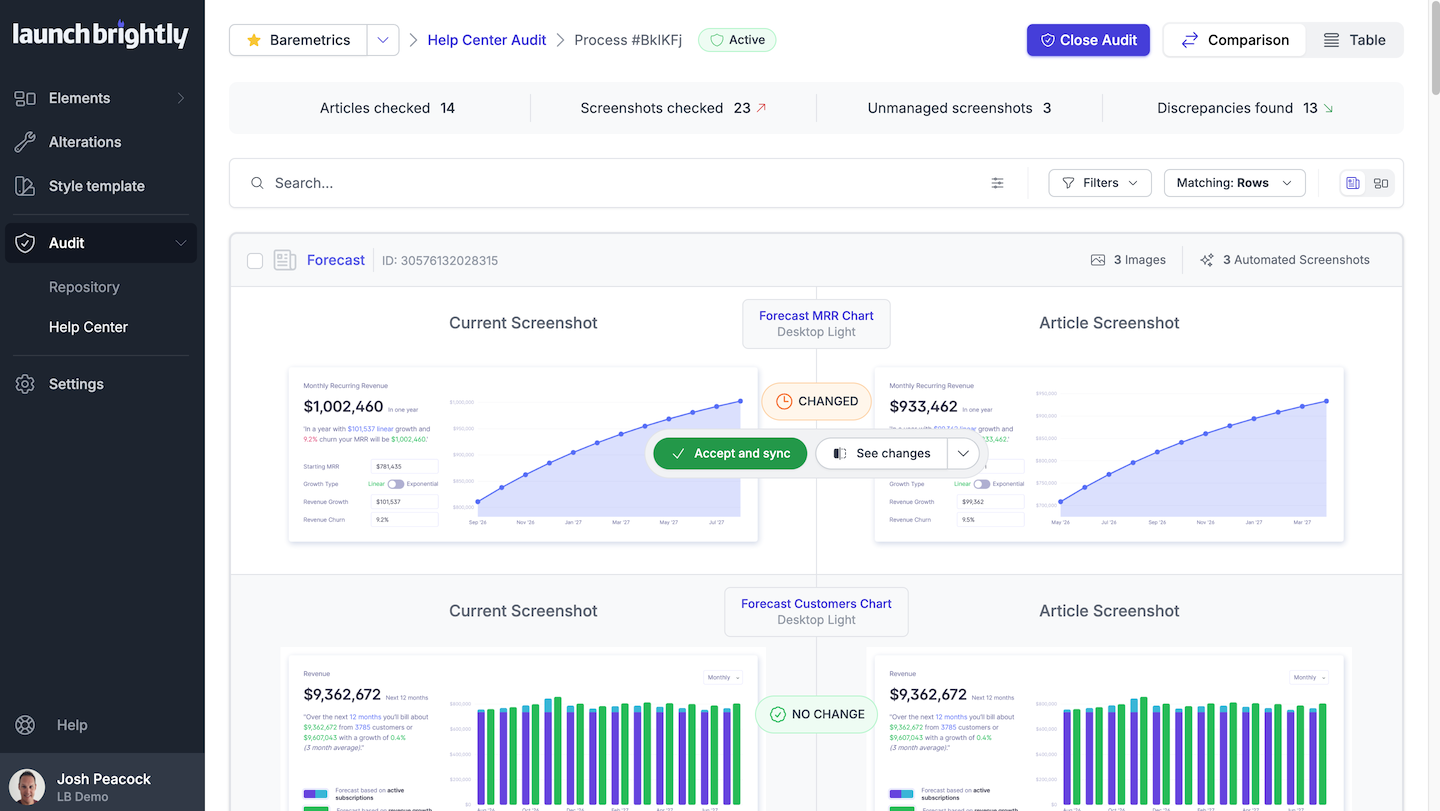
And the ongoing maintenance extends beyond simply generating new screenshots. LaunchBrightly's recurring screenshot audits automatically compare those freshly generated images against the versions currently in your help center, identifying exactly what changed and where. The platform also maintains the relationships between your screenshots and the help articles where they're used, so once you've reviewed and approved the changes, the updated screenshots can be automatically synced to every corresponding article — without having to manually locate and replace each instance.
What was once a recurring manual effort to find, recreate and replace outdated images becomes a single, ongoing screenshot governance process — keeping your help center accurate, up-to-date and aligned with your product as it evolves.
Final thoughts
Getting your screenshots organized is an important step toward making help center maintenance more manageable. But as your product evolves, keeping those images accurate is just as important as keeping them organized.
Whether you're improving your existing processes or introducing screenshot automation, the goal is the same: a reliable way to maintain your product visuals without continually revisiting the same manual work.
If you're managing hundreds or thousands of screenshots and would like to see how automation could work with your own product and documentation, we'd be happy to show you. 🙂